
How to Print Coloring Pages on a Windows PC
To print a coloring page on Windows, double-click the PDF to open it in Microsoft Edge, press Ctrl+P, choose your printer, set Pages to Custom and type the page number, then open More settings and set Scale to Actual size. Check the preview, print one page, and only then print the rest.
1. Open the PDF in Edge
Microsoft says Edge is the default PDF reader on Windows 11 and Windows 10, so double-clicking a downloaded PDF usually opens it there. You can also drag the file into an Edge window. If the download is a ZIP file, extract it first and open the PDF inside. Open the saved file itself, not a preview inside an email.
2. Choose the settings in the print window
Press Ctrl+P, or select Settings and more (the three dots) and then Print.
| Setting | Choose | Why |
|---|---|---|
| Printer | Your printer | Save as PDF and Microsoft Print to PDF save a file instead of printing |
| Layout | Portrait, unless the page is wider than it is tall | Matches the page in the preview |
| Pages | Custom, then a number such as 1 or a list such as 1-3, 5 | Prints only the pages you want, not the whole PDF |
| Paper size (More settings) | Letter or A4, whichever is in the tray | A Letter page on A4 paper, or the reverse, can clip an edge |
| Scale (More settings) | Actual size | Keeps the drawing at its real size; use Fit to printable area only if the border is cut off |
| Pages per sheet (More settings) | 1 | More than one shrinks each page |
| Headers and footers | Off, if shown | Edge can add the date and page number to the sheet |
Edge’s print window sets the paper size, not the paper type. If you are printing on cardstock or another heavy paper, select Print using system dialog (or press Ctrl+Shift+P) to reach your printer’s full settings, and choose the paper type your printer’s manual names.
3. Print one page and check it
Look for a complete outer border, dark thin lines, and the right size. Then test your pencil or marker on that sheet before printing the rest. If you would rather use Adobe Acrobat Reader, its Actual size and Fit options work the same way: Actual size prints without scaling, and Fit scales the page to the printable area.
Try it on a real page
Test page: Spring Tea Time
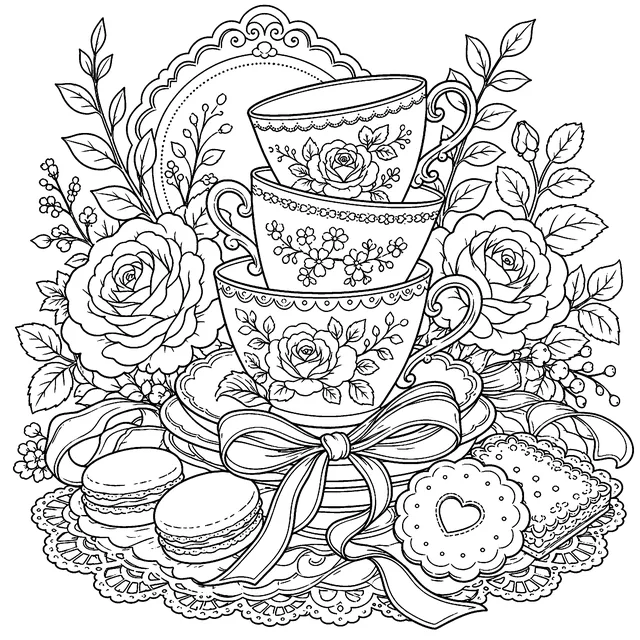
Each download opens a six-page PDF: five coloring pages followed by a print-instructions page. No email signup is needed. Print them for personal, household, classroom, and small-group use under the Coloring Nest license.
Common problems on Windows
| Problem | What to change |
|---|---|
| The border is cut off | Check that Paper size matches the paper in the tray, then switch Scale to Fit to printable area |
| The page prints small | Set Pages per sheet to 1 and Scale to Actual size |
| The whole PDF printed | Set Pages to Custom and type only the page numbers you want |
| A date or page number appears | Turn off Headers and footers in More settings |
| Lines are pale or broken | Use your printer’s normal or best quality instead of draft, and run its own cleaning or maintenance steps if ordinary documents are also faint |
On another device? See the guides for a Mac with Preview, an iPhone or iPad, and an Android phone. For paper choices, marker bleed, and sizing in more depth, read the full coloring page printing guide, and pick more pages from the free coloring page library.
Twelve free printable coloring pages
Two pages from each of six books, free and with no email required. Download the free pages.
Email me when a new Coloring Nest book is released. Nothing else.
Printable PDFs